
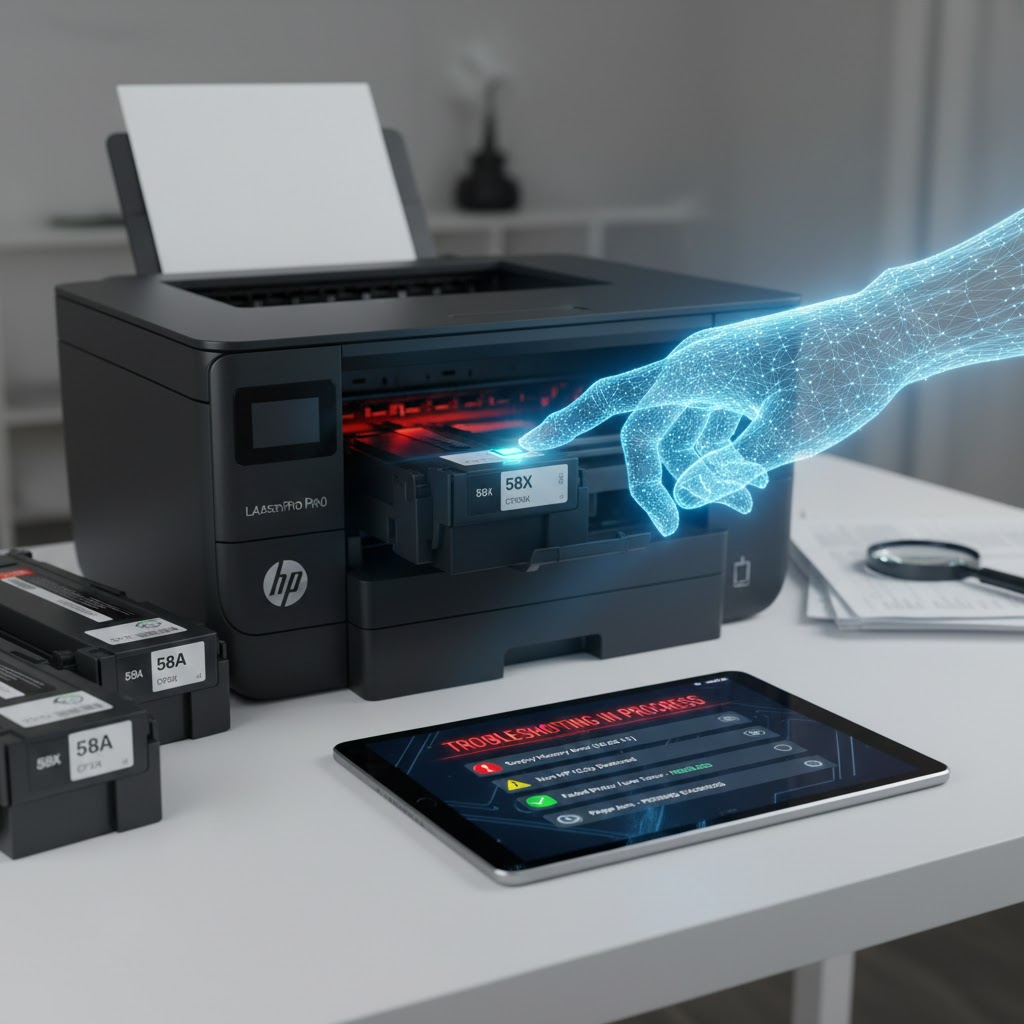
By Renexor—Your Printer’s Smartest Friend
Hey there. I’m Renexor, and if you’ve landed on this page, something has gone wrong between your HP LaserJet and its toner cartridge.

Take a breath.
I’ve spent my entire career inside the guts of laser printers, and the HP 58A (CF258A) and HP 58X (CF258X) cartridges are among the ones I know best. In the next few minutes, I’ll walk you through every common error these cartridges produce, explain what’s happening inside your machine, and give you the exact steps to fix it—no jargon, no fluff, no unnecessary service calls.
Let’s get your printer back to work.
What You’re Dealing With: CF258A and CF258X at a Glance
The HP 58A and HP 58X are monochrome toner cartridges engineered for the HP LaserJet Pro M404 and MFP M428 series—two of the most widely deployed office printers in North America.
- HP 58A (CF258A) – Standard yield (~3,000 pages)
- HP 58X (CF258X)—High yield (~10,000 pages)
Both cartridges use HP JetIntelligence technology, which includes an integrated memory chip. That chip communicates with the printer’s formatter board—and it’s the source of many of the errors we’re about to fix.
Compatible Printer Models
- HP LaserJet Pro M404n / M404dn / M404dw
- HP LaserJet Pro MFP M428dw / M428fdn / M428fdw
- HP LaserJet Enterprise M406dn
- HP LaserJet Enterprise MFP M430f
Error 1: “Supply Memory Error” (10.00.XX)
What You See
“Supply Memory Error” followed by codes like 10.00.00 or 10.00.11.
What’s Happening
The printer cannot read the cartridge chip. The “handshake” between the cartridge and formatter board fails.
Fix It—Step by Step
- Power cycle properly: Unplug the printer from the wall while powered on. Wait 60 seconds. Reconnect.
- Reseat the cartridge: Remove it, inspect the chip, wipe it gently with a dry lint-free cloth, and reinsert firmly.
- Check contact pins: Inspect the spring-loaded pins inside the printer. If they look compressed, gently pull them outward.
- Test with a known-good cartridge.
Renexor’s Note: Code 10.00.11 commonly appears after firmware updates. See Error 5.
Error 2: “Non-HP Chip Detected” or “Cartridge Blocked”
What You See
- “Non-HP Chip Detected”
- “Used or Counterfeit Cartridge”
- “Cartridge Blocked”
What’s Happening
HP Dynamic Security has rejected the chip—usually triggered by a recent firmware update.
Fix It
- Step 1: Disable Cartridge Policy
Setup→System Setup→Supply Settings→Cartridge Policy→ Off - Step 2: Disable Automatic Firmware Updates
Setup→Service→LaserJet Update→Manage Updates- Check Automatically → Off
- Allow Updates → No
- Step 3: Firmware Downgrade (Advanced) Download older firmware versions via the HP support site if the steps above fail.
Error 3: Faded, Light, or Washed-Out Prints
| Cause | Solution |
| EconoMode Is On | Setup → System Setup → Print Quality → EconoMode → Off |
| Low Toner | Remove the cartridge and gently rock it side-to-side to redistribute the powder. |
| Toner Density Low | Setup → System Setup → Print Quality → Toner Density → Set to 3 or 4 |
| Toner Seal Still On | Double-check both ends of the cartridge for any remaining orange tape. |
Error 4: Paper Jams (Real & Phantom)
- Phantom Jams: Check for tiny paper fragments near the sensors. Perform a 60-second power reset to clear the internal logic.
- Recurring Real Jams: Clean the pickup rollers with a damp cloth or replace them. Ensure you are using dry, fresh paper and the tray guides are snug.
Error 5: “Supply Problem” After Firmware Update
What Happened: HP pushed an update that changed cartridge validation rules to block third-party chips.
Fix It:
- Check your firmware date code in the “Service” menu.
- Disable automatic updates immediately to prevent future lockouts.
- Contact your cartridge supplier for a replacement chip/cartridge.
- Temporarily install an OEM (original) cartridge to confirm the printer hardware is still functional.
Error 6: Vertical Lines, Spots, or Streaks
- Vertical Black Lines: Likely a scratched OPC drum. Action: Replace cartridge.
- Repeating Spots (~3.75 inches apart): A classic sign of a drum defect.
- Horizontal Gray Bands: Issue with the developer roller inside the cartridge.
- Gray Background Haze: charge roller is failing, or the toner density is set too high.
Pro Tip: Always print 5 test pages before deciding to replace a cartridge; sometimes the system just needs to “purge” old toner.
Preventive Maintenance Checklist
- Disable automatic firmware updates on day one.
- Set your printer to “Very Low” to continue so it doesn’t stop printing prematurely.
- Store cartridges horizontally in a cool, dry place.
- Clean the cartridge cavity with a vacuum or lint-free cloth during every swap.
When to Call for Help
If errors persist after these steps, the issue might be hardware-related:
- Formatter board failure
- Worn separation pads
- Sensor assembly damage
Shop HP 58A & 58X
Free ground shipping. Hassle-free returns. Real support from real printer experts.
This article is part of the Toner Cartridge Depot Technical Library. Renexor investigates printer problems so you don’t have to. Subscribe to the blog for new troubleshooting guides, industry analysis, and the occasional cartridge economics deep dive.
About Renexor: Renexor is the resident technical expert and mascot of Toner Cartridge Depot. With a nose for printer problems and a passion for clear explanations, he helps thousands of businesses and home offices keep their printers running without unnecessary service calls or cartridge waste. You can find him in every issue of the Toner Cartridge Depot blog, across our social media channels, and—if you listen closely—somewhere near the nearest LaserJet, making sure the toner is flowing. Have a printer problem Renexor hasn’t covered? Drop us a line at support@tonercartridgedepot.com or call 1-866-587-8640.